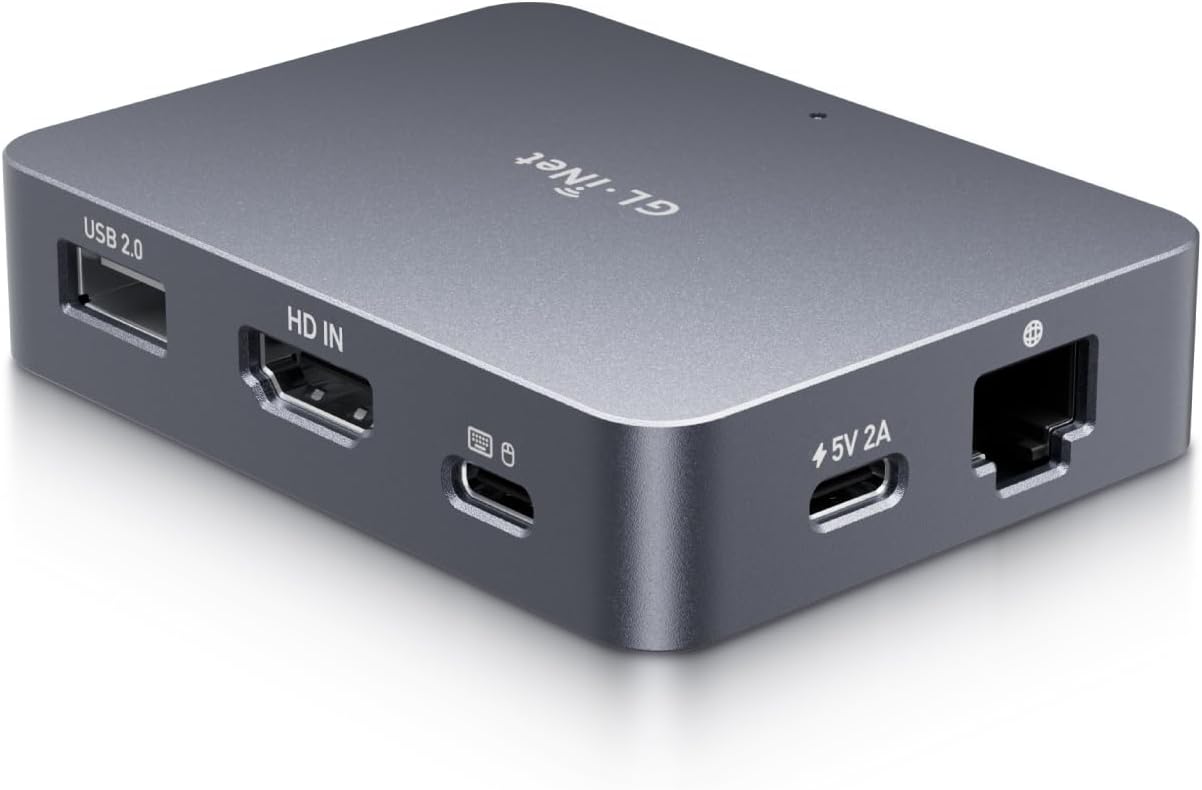
Description:
Reviews:
5.0 out of 5 stars A cheap, flexible and reliable hardware solution to allow remote KVM access.
(function() { P.when('cr-A', 'ready').execute(function(A) { if(typeof A.toggleExpanderAriaLabel === 'function') { A.toggleExpanderAriaLabel('review_text_read_more', 'Read more of this review', 'Read less of this review'); } }); })(); .review-text-read-more-expander:focus-visible { outline: 2px solid #2162a1; outline-offset: 2px; border-radius: 5px; } There were two primary functions I wanted to test this KVM for: 1. Using WOL to wake up a headless host and then be able to remotely connect to it both via LAN and WAN. Previously I had to use one utility to do the WOL and have a client loaded onto the host which meant that you couldn't remote to it until the OS had booted. The KVM allows me to use a single interface to WOL and then connect to the device. Having no client means you can also connect during POST if needed.2. Connect to a Chromebook remotelyPreviously to connect to a Chromebook remotely you needed to have Chrome Remote Desktop installed and you had to enter a code to allow remote access at the host meaning someone had to be at the host Chromebook. The KVM allows full access to the Chromebook now but with the caveat that the Chromebook is turned on as Chromebooks don't support WOL. (You could do with a remote power switch if you need to as most Chromebook will boot on power up).The unit is well made with an aluminum body which does get a bit warm even when in standby. You can connect via the app but that's only available for Windows and Mac at the moment and as primarily a Chromebook user, I use a Wireguard VPN into my home Flint 2 and then just use the web interface direct to the KVM. I can't seem to see any major differences in performance using the different connection methods ( Windows app vs Chromebook VPN). For remote access this unit works wonders. There's no software client or subscription fees which is a huge bonus and initial capital cost is low. The ability to do whatever I need to on the remote host is great and I can even stream videos with audio. There's a heap of settings to play with to get the most optimal solution for your requirements so it's pretty flexible.At the moment I don't have any use for the more advance functions like ATX or Fingerbot control but nice to know they're there if I ever need it. Well worth the money if you need simple, clientless and easy remote access.
5.0 out of 5 stars Excellent choice for remote IP KVM
I need 3x remote KVMs to manage my NUC Proxmox cluster. Originally had planned to go with JetKVMs, but they are currently unavailable in the US. A little research led me to this GL-iNet Comet Remote KVM, so I decided to try one out. Couldn't be more impressed. Well built, super easy set up, worked instantly. Features are great especially for the cost.I was hesitant to buy it now because a PoE version is on the way (per the manufacturer), but I really needed at least one KVM. I'll hold off for the others I need, the PoE version can't come soon enough!
4.0 out of 5 stars Pretty good. IP KVM
So after tinkering around a little bit I finally did get this thing working. I'm not a huge fan of the wall gardening, the app to Windows and Mac only. The main reason I got this product was to have a decent 60 FPS stream to control some of my servers over my land. And what's awesome is you can do exactly that you don't have to specifically be controlling just Mac and windows. All of my servers are running. Popos and with these plugged in, I can easily sit at my laptop and connect to the IP address locally without ever having to install or touch their application for that use. It's great! It works a lot better than open RDP or just RDP with Windows. My only downside to it is I do wish that had power over ethernet which the newer model looks like it will be just cuz it's kind of a mess for cable management
5.0 out of 5 stars A small, very cool, budget friendly IP KVM!
Well constructed, aluminum case. With two small exceptions, it includes all of the required cables you will need out of the box. The two exceptions are that if your host only has USB-A, you will need to either plug the Comet into a power adapter that will provide the proper power required and then use the USB-C to USB-A cable that is normally used to power it, order you’ll need to purchase another USB-C to USB-A cable or adapter. Second, the video port is HDMI - which is excellent, and is love that it is a full sized HDMI port - however this means plugging it into a device that requires VGA, DVI, or DisplayPort will require the use of an adapter and then setting the EDID to one that conveys the lack of Audio support and a possible lower resolution to the web interface / app. Ultimately a minor inconvenience, but it would be nice if it came with an assortment of adapters on a key ring or something with tested EDID information. As VGA, and DVI don’t carry audio i haven’t found any workaround to have audio be available in those instances, but since those are both quite rare these days it’s a minor problem. Dell Servers have VGA only, but with servers you rarely need the audio as is, and the newest generation of Dell servers have an optional Mini DisplayPort so theoretically they should be able to carry audio but I don’t have one so I can’t test that out.Straight out of the box, it was running the V1.1.0 release2 Firmware. Starting the firmware upgrade was straightforward and to the point however it transitions to a loading screen that says to not refresh the page while it is being updated and that it will take several minutes for the update to complete - it just sat there and never refreshed or went back to the GUI so after waiting half an hour I just restarted the Comet and reopened the GUI to see if I bricked it or something - it was fine and was now using the latest version of firmware, which at the time of writing this is V1.2.3 release1. I believe the update needed to force a reboot or the update screen should instruct the user to perform that step after a certain amount of time.As stated in their documentation, the default resolution and EDID is set to 2560x1440p / GLKVM / 60 Hz, and I have confirmed this matches what MacOS reports. At that resolution, I did find that even when on-prem and using the same local network, that resolution was a bit too high for its ability to encode on the fly for video or lots of changes on the screen (I noticed this first when seeing that the screensaver had turned on and that it wasn’t able to handle the “video” stream very well. Reducing the resolution and using one of the preloaded EDID for either “1920x1080 / ASUS / 60Hz” or “1920x1200 / Samsung / 60Hz” reduced this effect greatly, though it is still a little choppy - it’s passable for remote use via a budget friendly IP KVM though.The On-Screen keyboard when the Comet is connected to a Mac Mini (M1) displays as a Windows keyboard and MacOS shortcuts don’t work. I tried closing out (normally “Command + Q” and attempted using all three modifier keys - Alt, the Windows “Meta” key, and the CTRL keys - to no avail and even tried using individual taps and also multitouch taps on the virtual keyboard. I was going to submit a bug report on their GitHub repository for this but noticed someone already reported the issue and they said they are going to work on it.Outside of the little quirky “bugs” that are likely going to be fixed soon, and the fact there are no adapters included for different display types (VGA, DVI, DisplayPort), it’s awesome and even with those bugs and lack of adapters, I would still buy it again (see last paragraph)My wish list for things they can change or be improved upon:- On the next model / revision of this, please put all of the ports on one side of the device as dealing with this many cables coming out of two different sides is quite the pain to deal with.- For this current model, please design a purpose built plastic cable router or make some custom cables to help redirect all of the cables in an orderly fashion to one side of the device.- Design and sell a travel case that fits everything perfectly, including the display adapters (if needed). The only case I can find doesn’t take that into account.- Design a model that integrates a LTE/5G Cellular Travel Router with an additional 1Gb switch port or two, WiFi (useful if cellular and Ethernet connectivity isn’t an option, and could utilize the wireless relay feature already available on the other Travel Routers sold by GLiNet), and a screen to display the KVM IP address and Router IP. This would create the ideal Internet-connected KVM system, suitable for practical use in various locations. The model should be user-friendly, even for those who aren’t tech-savvy, allowing operators in the field to easily plug it in to enable a remote technician to work on it.Overall, I’m quite impressed with this device. It’s a cool, handy, and nice little budget-friendly addition to my toolkit. I had ordered two originally from GL.iNet directly through their website, but those aren’t expected to arrive until tomorrow, and I included the ATX control accessory, so we’ll see how that goes. In any case, I recommend this for anyone looking for a budget-friendly option.
5.0 out of 5 stars Works flawlessly
Fantastic product and just what I needed for my headless home automation PC. Simple setup and it just works. Easily copy and pasted to the remote system using the ToolBox that is part of the display. No much more to say except that it is TOTALLY worth the money.... and it ain't that expensive.
Works better than Sipeed Nano KVM and Jet KVM
(function() { P.when('cr-A', 'ready').execute(function(A) { if(typeof A.toggleExpanderAriaLabel === 'function') { A.toggleExpanderAriaLabel('review_text_read_more', 'Read more of this review', 'Read less of this review'); } }); })(); .review-text-read-more-expander:focus-visible { outline: 2px solid #2162a1; outline-offset: 2px; border-radius: 5px; } Excellent work, works perfect !I had a lot of issues with JetKVM infinite video loading issue, even with network passthrough for udp.But Comet works incredibly well with low latency !
Does the job.
Workshop as planned
Excellent small kvm for remote access to PCs-servers-firewalls etc,
Excellent. Really small KVM that will prove useful in accessing systems remotely. I didnt realise how compact it was until I unboxed it. Really well made also. HDMI video input - so if you have a VGA monitor connection - like I have - you will need a VGA to HDMI converter. (also available on Bolo).Works very well from the local LAN + Tailscale already setup - just needed to be authorised with my tailscale account.The PC I tried it with previously failed using PiKVM which complained about Video signal mismatch. Not so with this one. (Not saying that PiKVM isnt any good - it is - just didnt have the time to spend to fix the video mismatch). Only area I am not certain of is the lack of 2FA on the unit itself. This is included with PiKVM from the outset. When you search for 2FA, it points to the Glnet web site supporting 2FA. So basically, you login to their remote cloud portal (after signing in) using 2FA and then are able to access your KVM. IMO, Tailscale is the better approach. I dont want another cloud account.
High latency and no voice redirection.
Sehr kostengünstige Internet KVM-Lösung
Diese Mini-KVM-Lösung "GL-RM1/Comet" von "GL.iNet" kommt in einer Verkaufsverpackung mit folgendem Inhalt: GL-RM1 Grundgerät, Ethernet-Kabel, USB-Kabel A/C und C/C, HDMI-Kabel und eine kurze englischsprachige Anleitung.Ein USB-Netzteil wird nicht mitgeliefert. Ich empfehle, ein separates Netzteil zu verwenden und die KVM-Fernsteuerung nicht über einen USB-Port des zu steuernden Rechners mit Strom (5 V) zu versorgen.Der Hardwareaufbau ist nahezu ohne Anleitung möglich. Ethernet-Port mit dem Ethernet-Kabel an den Router anschließen, oder andere Netzwerkzugänge, die Internetzugang ermöglichen. HDMI-Kabel mit dem HDMI-Ausgang des zu steuernden Rechners verbinden und in den HDMI-Eingang des GL-RM1 Grundgeräts stecken. USB-Peripherie-Port des GL-RM1 Grundgeräts mit einem USB-Port des zu steuernden Rechners verbinden. Fertig.In meinem Fall habe ich einen Windows 2016 Server (LAN) mit einem Windows 11 Professional Notebook (WLAN) ferngesteuert. Die GL-RM1 KVM-Fernsteuerung ermöglicht das Bedienen bzw. Fernsteuern des Rechners, lokal im LAN oder über das Internet, an dem sie angeschlossen wurde. Dazu benutzt man eine Software (GLKVM.exe) auf einem zweiten Rechner, welche nicht nur die Konfiguration des GL-RM1 Grundgeräts ermöglicht, sondern eben auch die Fernsteuerung etabliert.Die Benutzung des Geräts und der Software benötig zwingend ein Benutzerkonto bei GL-iNet. Die Software führt einen praktisch durch den Prozess, und nach einer Verifikation der E-Mail-Adresse ist das Benutzerkonto schnell einsatzbereit.Das Erste, was man durchführen sollte, ist ein Firmware-Update. Die Windows Applikation zeigt einem den Stand der internen Firmware an und ob eventuell ein Update vorhanden ist. Den Aktualisierungsprozess sollte man tunlichst nicht unterbrechen, da sonst das Gerät nicht mehr funktioniert. Ist im Prinzip wie ein BIOS-Update bei einem Mainboard.Auf der Seite des zu steuernden Rechners gibt es keinerlei Treiber zu installieren. Während des Betriebes erzeugt das Grundgerät durch das Verbinden mit dem USB-Anschluss dieses Rechners ein virtuelles CD-Laufwerk bzw. einen virtuellen USB-Datenträger, der im Dateiexplorer allerdings gar nicht auftaucht. Dadurch wird die USB-Steuerung der Eingabegeräte des zu steuernden Rechners für den entfernten Steuerrechner ermöglicht. Die Software basiert auf Linux, was auch auf die ganze softwareseitige Übertragungstechnik zutrifft.Zusätzlich sollte beachtet werden, dass für eine Remote-Session der H.264-Codec zur Übertragung der grafischen Darstellung verwendet wird. Das steuernde Gerät sollte eine Unterstützung für diesen Codec in Hardware besitzen, sonst wird eine Remote-Session zu einer Belastungsprobe für den steuernden Rechner.Das bedeutet aber auch, dass man eine solche Remote-Session, z.B. in einer Auflösung über 1920 x 1080 Pixeln, nicht über eine Basisbreitbandverbindung etablieren sollte. Mindestens 50 MBit sind schon Voraussetzung, um nicht den restlichen Internetbetrieb lahm zu legen, mal ganz abgesehen von Dateiübertragungen. Im LAN ist das natürlich irrelevant.Die weiteren technischen Daten und auch die vollständige Spezifikation des Geräts kann man auf der Bolo Produktseite einsehen bzw. auch auf der Produktseite des Herstellers, auf die man sowieso zwangsweise kommt, weil man ein Benutzerkonto anlegen muss.Ich empfand die Steuermöglichkeiten des GL-RM1 im Vergleich zu Microsofts Remotedesktop als etwas weniger systemintegriert. Die Lösung von GL-iNet hat natürlich den Vorteil Hardwareunabhängig zu sein und die Fernsteuerung von außen in das lokale LAN zu ermöglichen, ohne den zu steuernden Rechner aufwändig konfigurieren zu müssen.Darüber hinaus muss man keine dedizierte öffentliche IP besitzen bzw. man kann über die GL-iNet Cloud eine Verbindung zum lokalen LAN herstellen, ohne einen Port freischalten und dadurch Sicherheitsrisiken eingehen zu müssen. Insofern ist diese KVM-Fernsteuerung eine sehr smarte Lösung.Daher auch fünf Sterne. Insbesondere auch für den moderaten Preis von nur ca. 100 €.
Visit the GL.iNet Store
GL.iNet Comet (GL-RM1) Remote KVM Control Over Internet, 4K@30Fps, Tailscale Support, Remote Keyboard, Video, Mouse,Install OS Via BIOS Control, Adapted KVM Switches, Mouse Jiggler for Home Work
AED58932
Quantity:
Order today to get by 7-14 business days
This item qualifies for free delivery
Imported From: United States
At BOLO, we work hard to ensure the products you receive are new, genuine, and sourced from reputable suppliers.
BOLO is not an authorized or official retailer for most brands, nor are we affiliated with manufacturers unless specifically stated on a product page. Instead, we source verified sellers, authorized distributors or directly from the manufacturer.
Each product undergoes thorough inspection and verification at our consolidation and fulfilment centers to ensure it meets our strict authenticity and quality standards before being shipped and delivered to you.
If you ever have concerns regarding the authenticity of a product purchased from us, please contact Bolo Support. We will review your inquiry promptly and, if necessary, provide documentation verifying authenticity or offer a suitable resolution.
Your trust is our top priority, and we are committed to maintaining transparency and integrity in every transaction.
All product information, images, descriptions, and reviews originate from the manufacturer or from trusted sellers overseas. BOLO is not affiliated with, endorsed by, or an authorized retailer for most brands listed on our website unless stated otherwise.
While we strive to display accurate information, variations in packaging, labeling, instructions, or formulation may occasionally occur due to regional differences or supplier updates. For detailed or manufacturer-specific information, please contact the brand directly or reach out to BOLO Support for assistance.
Unless otherwise stated, all prices displayed on the product page include applicable taxes and import duties.
BOLO operates in accordance with the laws and regulations of United Arab Emirates. Any items found to be restricted or prohibited for sale within the UAE will be cancelled prior to shipment. We take proactive measures to ensure that only products permitted for sale in United Arab Emirates are listed on our website.
All items are shipped by air, and any products classified as “Dangerous Goods (DG)” under IATA regulations will be removed from the order and cancelled.
All orders are processed manually, and we make every effort to process them promptly once confirmed. Products cancelled due to the above reasons will be permanently removed from listings across the website.
Similar suggestions by Bolo
More from this brand
Similar items from “KVM Switches”
Share with
Or share with link
https://www.bolo.ae/products/UO0S21FD4F8
Visit the GL.iNet Store
GL.iNet Comet (GL-RM1) Remote KVM Control Over Internet, 4K@30Fps, Tailscale Support, Remote Keyboard, Video, Mouse,Install OS Via BIOS Control, Adapted KVM Switches, Mouse Jiggler for Home Work

AED58932
Quantity:
Order today to get by 7-14 business days
This item qualifies for free delivery
Imported From: United States
At BOLO, we work hard to ensure the products you receive are new, genuine, and sourced from reputable suppliers.
BOLO is not an authorized or official retailer for most brands, nor are we affiliated with manufacturers unless specifically stated on a product page. Instead, we source verified sellers, authorized distributors or directly from the manufacturer.
Each product undergoes thorough inspection and verification at our consolidation and fulfilment centers to ensure it meets our strict authenticity and quality standards before being shipped and delivered to you.
If you ever have concerns regarding the authenticity of a product purchased from us, please contact Bolo Support. We will review your inquiry promptly and, if necessary, provide documentation verifying authenticity or offer a suitable resolution.
Your trust is our top priority, and we are committed to maintaining transparency and integrity in every transaction.
All product information, images, descriptions, and reviews originate from the manufacturer or from trusted sellers overseas. BOLO is not affiliated with, endorsed by, or an authorized retailer for most brands listed on our website unless stated otherwise.
While we strive to display accurate information, variations in packaging, labeling, instructions, or formulation may occasionally occur due to regional differences or supplier updates. For detailed or manufacturer-specific information, please contact the brand directly or reach out to BOLO Support for assistance.
Unless otherwise stated, all prices displayed on the product page include applicable taxes and import duties.
BOLO operates in accordance with the laws and regulations of United Arab Emirates. Any items found to be restricted or prohibited for sale within the UAE will be cancelled prior to shipment. We take proactive measures to ensure that only products permitted for sale in United Arab Emirates are listed on our website.
All items are shipped by air, and any products classified as “Dangerous Goods (DG)” under IATA regulations will be removed from the order and cancelled.
All orders are processed manually, and we make every effort to process them promptly once confirmed. Products cancelled due to the above reasons will be permanently removed from listings across the website.
Description:
Reviews:
5.0 out of 5 stars A cheap, flexible and reliable hardware solution to allow remote KVM access.
(function() { P.when('cr-A', 'ready').execute(function(A) { if(typeof A.toggleExpanderAriaLabel === 'function') { A.toggleExpanderAriaLabel('review_text_read_more', 'Read more of this review', 'Read less of this review'); } }); })(); .review-text-read-more-expander:focus-visible { outline: 2px solid #2162a1; outline-offset: 2px; border-radius: 5px; } There were two primary functions I wanted to test this KVM for: 1. Using WOL to wake up a headless host and then be able to remotely connect to it both via LAN and WAN. Previously I had to use one utility to do the WOL and have a client loaded onto the host which meant that you couldn't remote to it until the OS had booted. The KVM allows me to use a single interface to WOL and then connect to the device. Having no client means you can also connect during POST if needed.2. Connect to a Chromebook remotelyPreviously to connect to a Chromebook remotely you needed to have Chrome Remote Desktop installed and you had to enter a code to allow remote access at the host meaning someone had to be at the host Chromebook. The KVM allows full access to the Chromebook now but with the caveat that the Chromebook is turned on as Chromebooks don't support WOL. (You could do with a remote power switch if you need to as most Chromebook will boot on power up).The unit is well made with an aluminum body which does get a bit warm even when in standby. You can connect via the app but that's only available for Windows and Mac at the moment and as primarily a Chromebook user, I use a Wireguard VPN into my home Flint 2 and then just use the web interface direct to the KVM. I can't seem to see any major differences in performance using the different connection methods ( Windows app vs Chromebook VPN). For remote access this unit works wonders. There's no software client or subscription fees which is a huge bonus and initial capital cost is low. The ability to do whatever I need to on the remote host is great and I can even stream videos with audio. There's a heap of settings to play with to get the most optimal solution for your requirements so it's pretty flexible.At the moment I don't have any use for the more advance functions like ATX or Fingerbot control but nice to know they're there if I ever need it. Well worth the money if you need simple, clientless and easy remote access.
5.0 out of 5 stars Excellent choice for remote IP KVM
I need 3x remote KVMs to manage my NUC Proxmox cluster. Originally had planned to go with JetKVMs, but they are currently unavailable in the US. A little research led me to this GL-iNet Comet Remote KVM, so I decided to try one out. Couldn't be more impressed. Well built, super easy set up, worked instantly. Features are great especially for the cost.I was hesitant to buy it now because a PoE version is on the way (per the manufacturer), but I really needed at least one KVM. I'll hold off for the others I need, the PoE version can't come soon enough!
4.0 out of 5 stars Pretty good. IP KVM
So after tinkering around a little bit I finally did get this thing working. I'm not a huge fan of the wall gardening, the app to Windows and Mac only. The main reason I got this product was to have a decent 60 FPS stream to control some of my servers over my land. And what's awesome is you can do exactly that you don't have to specifically be controlling just Mac and windows. All of my servers are running. Popos and with these plugged in, I can easily sit at my laptop and connect to the IP address locally without ever having to install or touch their application for that use. It's great! It works a lot better than open RDP or just RDP with Windows. My only downside to it is I do wish that had power over ethernet which the newer model looks like it will be just cuz it's kind of a mess for cable management
5.0 out of 5 stars A small, very cool, budget friendly IP KVM!
Well constructed, aluminum case. With two small exceptions, it includes all of the required cables you will need out of the box. The two exceptions are that if your host only has USB-A, you will need to either plug the Comet into a power adapter that will provide the proper power required and then use the USB-C to USB-A cable that is normally used to power it, order you’ll need to purchase another USB-C to USB-A cable or adapter. Second, the video port is HDMI - which is excellent, and is love that it is a full sized HDMI port - however this means plugging it into a device that requires VGA, DVI, or DisplayPort will require the use of an adapter and then setting the EDID to one that conveys the lack of Audio support and a possible lower resolution to the web interface / app. Ultimately a minor inconvenience, but it would be nice if it came with an assortment of adapters on a key ring or something with tested EDID information. As VGA, and DVI don’t carry audio i haven’t found any workaround to have audio be available in those instances, but since those are both quite rare these days it’s a minor problem. Dell Servers have VGA only, but with servers you rarely need the audio as is, and the newest generation of Dell servers have an optional Mini DisplayPort so theoretically they should be able to carry audio but I don’t have one so I can’t test that out.Straight out of the box, it was running the V1.1.0 release2 Firmware. Starting the firmware upgrade was straightforward and to the point however it transitions to a loading screen that says to not refresh the page while it is being updated and that it will take several minutes for the update to complete - it just sat there and never refreshed or went back to the GUI so after waiting half an hour I just restarted the Comet and reopened the GUI to see if I bricked it or something - it was fine and was now using the latest version of firmware, which at the time of writing this is V1.2.3 release1. I believe the update needed to force a reboot or the update screen should instruct the user to perform that step after a certain amount of time.As stated in their documentation, the default resolution and EDID is set to 2560x1440p / GLKVM / 60 Hz, and I have confirmed this matches what MacOS reports. At that resolution, I did find that even when on-prem and using the same local network, that resolution was a bit too high for its ability to encode on the fly for video or lots of changes on the screen (I noticed this first when seeing that the screensaver had turned on and that it wasn’t able to handle the “video” stream very well. Reducing the resolution and using one of the preloaded EDID for either “1920x1080 / ASUS / 60Hz” or “1920x1200 / Samsung / 60Hz” reduced this effect greatly, though it is still a little choppy - it’s passable for remote use via a budget friendly IP KVM though.The On-Screen keyboard when the Comet is connected to a Mac Mini (M1) displays as a Windows keyboard and MacOS shortcuts don’t work. I tried closing out (normally “Command + Q” and attempted using all three modifier keys - Alt, the Windows “Meta” key, and the CTRL keys - to no avail and even tried using individual taps and also multitouch taps on the virtual keyboard. I was going to submit a bug report on their GitHub repository for this but noticed someone already reported the issue and they said they are going to work on it.Outside of the little quirky “bugs” that are likely going to be fixed soon, and the fact there are no adapters included for different display types (VGA, DVI, DisplayPort), it’s awesome and even with those bugs and lack of adapters, I would still buy it again (see last paragraph)My wish list for things they can change or be improved upon:- On the next model / revision of this, please put all of the ports on one side of the device as dealing with this many cables coming out of two different sides is quite the pain to deal with.- For this current model, please design a purpose built plastic cable router or make some custom cables to help redirect all of the cables in an orderly fashion to one side of the device.- Design and sell a travel case that fits everything perfectly, including the display adapters (if needed). The only case I can find doesn’t take that into account.- Design a model that integrates a LTE/5G Cellular Travel Router with an additional 1Gb switch port or two, WiFi (useful if cellular and Ethernet connectivity isn’t an option, and could utilize the wireless relay feature already available on the other Travel Routers sold by GLiNet), and a screen to display the KVM IP address and Router IP. This would create the ideal Internet-connected KVM system, suitable for practical use in various locations. The model should be user-friendly, even for those who aren’t tech-savvy, allowing operators in the field to easily plug it in to enable a remote technician to work on it.Overall, I’m quite impressed with this device. It’s a cool, handy, and nice little budget-friendly addition to my toolkit. I had ordered two originally from GL.iNet directly through their website, but those aren’t expected to arrive until tomorrow, and I included the ATX control accessory, so we’ll see how that goes. In any case, I recommend this for anyone looking for a budget-friendly option.
5.0 out of 5 stars Works flawlessly
Fantastic product and just what I needed for my headless home automation PC. Simple setup and it just works. Easily copy and pasted to the remote system using the ToolBox that is part of the display. No much more to say except that it is TOTALLY worth the money.... and it ain't that expensive.
Works better than Sipeed Nano KVM and Jet KVM
(function() { P.when('cr-A', 'ready').execute(function(A) { if(typeof A.toggleExpanderAriaLabel === 'function') { A.toggleExpanderAriaLabel('review_text_read_more', 'Read more of this review', 'Read less of this review'); } }); })(); .review-text-read-more-expander:focus-visible { outline: 2px solid #2162a1; outline-offset: 2px; border-radius: 5px; } Excellent work, works perfect !I had a lot of issues with JetKVM infinite video loading issue, even with network passthrough for udp.But Comet works incredibly well with low latency !
Does the job.
Workshop as planned
Excellent small kvm for remote access to PCs-servers-firewalls etc,
Excellent. Really small KVM that will prove useful in accessing systems remotely. I didnt realise how compact it was until I unboxed it. Really well made also. HDMI video input - so if you have a VGA monitor connection - like I have - you will need a VGA to HDMI converter. (also available on Bolo).Works very well from the local LAN + Tailscale already setup - just needed to be authorised with my tailscale account.The PC I tried it with previously failed using PiKVM which complained about Video signal mismatch. Not so with this one. (Not saying that PiKVM isnt any good - it is - just didnt have the time to spend to fix the video mismatch). Only area I am not certain of is the lack of 2FA on the unit itself. This is included with PiKVM from the outset. When you search for 2FA, it points to the Glnet web site supporting 2FA. So basically, you login to their remote cloud portal (after signing in) using 2FA and then are able to access your KVM. IMO, Tailscale is the better approach. I dont want another cloud account.
High latency and no voice redirection.
Sehr kostengünstige Internet KVM-Lösung
Diese Mini-KVM-Lösung "GL-RM1/Comet" von "GL.iNet" kommt in einer Verkaufsverpackung mit folgendem Inhalt: GL-RM1 Grundgerät, Ethernet-Kabel, USB-Kabel A/C und C/C, HDMI-Kabel und eine kurze englischsprachige Anleitung.Ein USB-Netzteil wird nicht mitgeliefert. Ich empfehle, ein separates Netzteil zu verwenden und die KVM-Fernsteuerung nicht über einen USB-Port des zu steuernden Rechners mit Strom (5 V) zu versorgen.Der Hardwareaufbau ist nahezu ohne Anleitung möglich. Ethernet-Port mit dem Ethernet-Kabel an den Router anschließen, oder andere Netzwerkzugänge, die Internetzugang ermöglichen. HDMI-Kabel mit dem HDMI-Ausgang des zu steuernden Rechners verbinden und in den HDMI-Eingang des GL-RM1 Grundgeräts stecken. USB-Peripherie-Port des GL-RM1 Grundgeräts mit einem USB-Port des zu steuernden Rechners verbinden. Fertig.In meinem Fall habe ich einen Windows 2016 Server (LAN) mit einem Windows 11 Professional Notebook (WLAN) ferngesteuert. Die GL-RM1 KVM-Fernsteuerung ermöglicht das Bedienen bzw. Fernsteuern des Rechners, lokal im LAN oder über das Internet, an dem sie angeschlossen wurde. Dazu benutzt man eine Software (GLKVM.exe) auf einem zweiten Rechner, welche nicht nur die Konfiguration des GL-RM1 Grundgeräts ermöglicht, sondern eben auch die Fernsteuerung etabliert.Die Benutzung des Geräts und der Software benötig zwingend ein Benutzerkonto bei GL-iNet. Die Software führt einen praktisch durch den Prozess, und nach einer Verifikation der E-Mail-Adresse ist das Benutzerkonto schnell einsatzbereit.Das Erste, was man durchführen sollte, ist ein Firmware-Update. Die Windows Applikation zeigt einem den Stand der internen Firmware an und ob eventuell ein Update vorhanden ist. Den Aktualisierungsprozess sollte man tunlichst nicht unterbrechen, da sonst das Gerät nicht mehr funktioniert. Ist im Prinzip wie ein BIOS-Update bei einem Mainboard.Auf der Seite des zu steuernden Rechners gibt es keinerlei Treiber zu installieren. Während des Betriebes erzeugt das Grundgerät durch das Verbinden mit dem USB-Anschluss dieses Rechners ein virtuelles CD-Laufwerk bzw. einen virtuellen USB-Datenträger, der im Dateiexplorer allerdings gar nicht auftaucht. Dadurch wird die USB-Steuerung der Eingabegeräte des zu steuernden Rechners für den entfernten Steuerrechner ermöglicht. Die Software basiert auf Linux, was auch auf die ganze softwareseitige Übertragungstechnik zutrifft.Zusätzlich sollte beachtet werden, dass für eine Remote-Session der H.264-Codec zur Übertragung der grafischen Darstellung verwendet wird. Das steuernde Gerät sollte eine Unterstützung für diesen Codec in Hardware besitzen, sonst wird eine Remote-Session zu einer Belastungsprobe für den steuernden Rechner.Das bedeutet aber auch, dass man eine solche Remote-Session, z.B. in einer Auflösung über 1920 x 1080 Pixeln, nicht über eine Basisbreitbandverbindung etablieren sollte. Mindestens 50 MBit sind schon Voraussetzung, um nicht den restlichen Internetbetrieb lahm zu legen, mal ganz abgesehen von Dateiübertragungen. Im LAN ist das natürlich irrelevant.Die weiteren technischen Daten und auch die vollständige Spezifikation des Geräts kann man auf der Bolo Produktseite einsehen bzw. auch auf der Produktseite des Herstellers, auf die man sowieso zwangsweise kommt, weil man ein Benutzerkonto anlegen muss.Ich empfand die Steuermöglichkeiten des GL-RM1 im Vergleich zu Microsofts Remotedesktop als etwas weniger systemintegriert. Die Lösung von GL-iNet hat natürlich den Vorteil Hardwareunabhängig zu sein und die Fernsteuerung von außen in das lokale LAN zu ermöglichen, ohne den zu steuernden Rechner aufwändig konfigurieren zu müssen.Darüber hinaus muss man keine dedizierte öffentliche IP besitzen bzw. man kann über die GL-iNet Cloud eine Verbindung zum lokalen LAN herstellen, ohne einen Port freischalten und dadurch Sicherheitsrisiken eingehen zu müssen. Insofern ist diese KVM-Fernsteuerung eine sehr smarte Lösung.Daher auch fünf Sterne. Insbesondere auch für den moderaten Preis von nur ca. 100 €.
Similar suggestions by Bolo
More from this brand
Similar items from “KVM Switches”
Share with
Or share with link
https://www.bolo.ae/products/UO0S21FD4F8