Description:
Details:
| Brand | VOYEE |
|---|---|
| Model name | switch controller |
| Compatible devices | Nintendo Switch, Switch Lite, Switch OLED, PC |
| Controller type | Gamepad, Joystick |
| Connectivity technology | Wireless |
Visit the VOYEE Store
VOYEE Wireless Switch Controllers for Switch/Lite/OLED/PC, Pro Controller
AED15492
Quantity:
Order today to get by 7-14 business days
Delivery fee of AED 20. Free for orders above AED 200.
'%3e%3crect%20x='0.599609'%20width='22.4'%20height='16'%20fill='%230A17A7'/%3e%3cpath%20fill-rule='evenodd'%20clip-rule='evenodd'%20d='M-0.426196%20-1.53223L9.1335%204.91587V-1.06506H14.4668V4.91648L24.0263%20-1.53147L25.2193%200.237148L17.6615%205.33494H23.0002V10.6683H17.6618L25.2187%2015.7655L24.0258%2017.5341L14.4668%2011.0865V17.0683H9.1335V11.0871L-0.425634%2017.5348L-1.61858%2015.7662L5.93947%2010.6683H0.600172V5.33494H5.93977L-1.61914%200.236387L-0.426196%20-1.53223Z'%20fill='white'/%3e%3cpath%20d='M15.5332%205.06615L25.6655%20-1.59961'%20stroke='%23DB1F35'%20stroke-width='0.533333'%20stroke-linecap='round'/%3e%3cpath%20d='M16.6094%2010.9578L25.6924%2017.0801'%20stroke='%23DB1F35'%20stroke-width='0.533333'%20stroke-linecap='round'/%3e%3cpath%20d='M7.00176%205.04727L-2.47266%20-1.33789'%20stroke='%23DB1F35'%20stroke-width='0.533333'%20stroke-linecap='round'/%3e%3cpath%20d='M8.02936%2010.8842L-2.47266%2017.8486'%20stroke='%23DB1F35'%20stroke-width='0.533333'%20stroke-linecap='round'/%3e%3cpath%20fill-rule='evenodd'%20clip-rule='evenodd'%20d='M0.599609%209.6H10.1996V16H13.3996V9.6H22.9996V6.4H13.3996V0H10.1996V6.4H0.599609V9.6Z'%20fill='%23E6273E'/%3e%3c/g%3e%3c/svg%3e) Imported From: United Kingdom
Imported From: United Kingdom
At BOLO, we work hard to ensure the products you receive are new, genuine, and sourced from reputable suppliers.
Every product in the BOLO catalogue is sourced through our Verified Global Supply Network of verified sellers, authorized distributors or directly from the manufacturer.
Each product undergoes thorough inspection and verification at our consolidation and fulfilment centers to ensure it meets our strict authenticity and quality standards before being shipped and delivered to you.
If you ever have concerns regarding the authenticity of a product purchased from us, please contact Bolo Support. We will review your inquiry promptly and, if necessary, provide documentation verifying authenticity or offer a suitable resolution.
Your trust is our top priority, and we are committed to maintaining transparency and integrity in every transaction.
While we strive to display accurate information, variations in packaging, labeling, instructions, or formulation may occasionally occur due to regional differences or supplier updates. For detailed or manufacturer-specific information, please contact the brand directly or reach out to BOLO Support for assistance.
Unless otherwise stated, all prices displayed on the product page include applicable taxes and import duties.
BOLO operates in accordance with the laws and regulations of United Arab Emirates. Any items found to be restricted or prohibited for sale within the United Arab Emirates will be cancelled prior to shipment. We take proactive measures to ensure that only products permitted for sale in United Arab Emirates are listed on our website.
All items are shipped by air, and any products classified as “Dangerous Goods (DG)” under IATA regulations will be removed from the order and cancelled.
All orders are processed manually, and we make every effort to process them promptly once confirmed. Products cancelled due to the above reasons will be permanently removed from listings across the website.

Compatible with Switch Controllers/Switch Pro Controller/Switch Lite Controller/OLED/PC

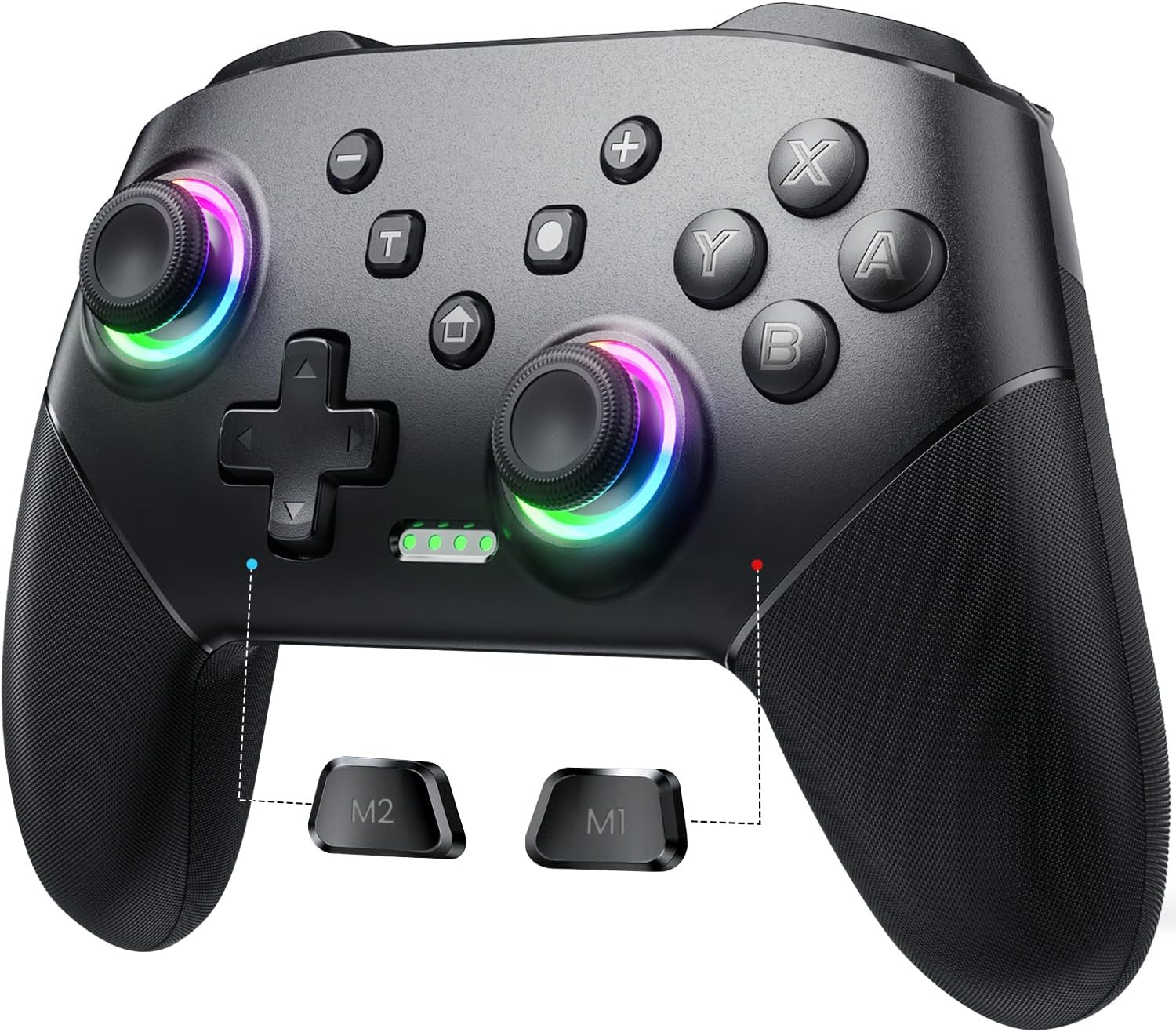
3 Lighting Modes of Joysticks
Strobe Mode
Press the "LED" and "+" button at the same time, and the LEDs flash quickly (colors changed cyclically), like Disco. Press the "LED" and "+" button again to close the light mode.
Breathing Mode
Press the "LED" and "+" button for the third time to enter breathing mode. The 8 light color of the joysticks will automatically cycled slowly one by one.
Static Mode
Press the ''LED'' button to enter static mode. The joysticks will keep that color you choose. Each time the ''LED'' is pressed, the joystick takes on a different color (Order: rainbow-red-orange-yellow-green-blue-cyan-purple-white-off).
Turn off The Light: Press the "LED" and "L3" button.

Our controller has the overall better option in terms of comfort, efficiency, sensitivity and durability.
Compatible with Switch Wireless Controller

M1/M2 Custom Macro Editor
The pro controller comes with a macro mode built in, where you can easily change the buttons.
Press M1/M2 and "-" : Only one button value can be mapped to the back button under the Mapping Mode.
Press M1/M2 and "+" : Define up to 16 button values to the back buttons in macro definition mode.
The default M1 and M2 have no button function value.
Map Buttons to M1 or M2 Key
1. Press M1/M2 and "+" at the same time for 2-3s. Once the controller vibrates, the RGB lights of the joysticks turn white and flash slowly.
2. Press the buttons you want to map one by one (A/B/X/Y/L/R/ZL/ZR/Z3/L3/up/down/left/right), and the RGB lights of the left and right joysticks flash from slowly to frequently, indicating that the function buttons to be mapped have been selected.
3. Press M1 or M2 key (of which to be programmed) to confirm. Once the controller vibrates, the mapping is complete.
Close Programmable Function
Press "T" and "-" buttons for 3s. Once the controller vibrates, the setting is cleared and M1/M2 has no button function value added.

Pair with Switch - Wireless Mode (2 Ways: (1) One-click Pairing (2) Y+HOME button)
1. Turn on the console, click on 'Controller'一'Change grip/sequence';
2. Press and hold the Pairing key or "Y"+HOME button of the controller for 2-3s to enter the pairing state. The LEDs flash quickly and then been on.
Pair with PC - Wired Mode (Note: You could play PC games on Steam, but Not support all.)
1. Connect the controller to the pc with a USB cable. The LED1 and LED4 will flash slowly, and then it is successfully connected;
2. The controller defaults to Xinput mode on the PC side, and the keys are not XB 360 key layout;
3. Press and hold the HOME button for 3s, it can be converted from Xinput to the Dinput mode. LED1 and LED3 been on at the same time.
Compatible with Switch Pro Controller

Similar suggestions by Bolo
More from this brand
Similar items from “Controllers”
Share with
Or share with link
https://www.bolo.ae/products/KO0O8WOYJE8
Visit the VOYEE Store
VOYEE Wireless Switch Controllers for Switch/Lite/OLED/PC, Pro Controller
AED15492
Quantity:
Order today to get by 7-14 business days
Delivery fee of AED 20. Free for orders above AED 200.
Imported From: United Kingdom
At BOLO, we work hard to ensure the products you receive are new, genuine, and sourced from reputable suppliers.
Every product in the BOLO catalogue is sourced through our Verified Global Supply Network of verified sellers, authorized distributors or directly from the manufacturer.
Each product undergoes thorough inspection and verification at our consolidation and fulfilment centers to ensure it meets our strict authenticity and quality standards before being shipped and delivered to you.
If you ever have concerns regarding the authenticity of a product purchased from us, please contact Bolo Support. We will review your inquiry promptly and, if necessary, provide documentation verifying authenticity or offer a suitable resolution.
Your trust is our top priority, and we are committed to maintaining transparency and integrity in every transaction.
While we strive to display accurate information, variations in packaging, labeling, instructions, or formulation may occasionally occur due to regional differences or supplier updates. For detailed or manufacturer-specific information, please contact the brand directly or reach out to BOLO Support for assistance.
Unless otherwise stated, all prices displayed on the product page include applicable taxes and import duties.
BOLO operates in accordance with the laws and regulations of United Arab Emirates. Any items found to be restricted or prohibited for sale within the United Arab Emirates will be cancelled prior to shipment. We take proactive measures to ensure that only products permitted for sale in United Arab Emirates are listed on our website.
All items are shipped by air, and any products classified as “Dangerous Goods (DG)” under IATA regulations will be removed from the order and cancelled.
All orders are processed manually, and we make every effort to process them promptly once confirmed. Products cancelled due to the above reasons will be permanently removed from listings across the website.
Description:
Details:
| Brand | VOYEE |
|---|---|
| Model name | switch controller |
| Compatible devices | Nintendo Switch, Switch Lite, Switch OLED, PC |
| Controller type | Gamepad, Joystick |
| Connectivity technology | Wireless |
Compatible with Switch Controllers/Switch Pro Controller/Switch Lite Controller/OLED/PC
3 Lighting Modes of Joysticks
Strobe Mode
Press the "LED" and "+" button at the same time, and the LEDs flash quickly (colors changed cyclically), like Disco. Press the "LED" and "+" button again to close the light mode.
Breathing Mode
Press the "LED" and "+" button for the third time to enter breathing mode. The 8 light color of the joysticks will automatically cycled slowly one by one.
Static Mode
Press the ''LED'' button to enter static mode. The joysticks will keep that color you choose. Each time the ''LED'' is pressed, the joystick takes on a different color (Order: rainbow-red-orange-yellow-green-blue-cyan-purple-white-off).
Turn off The Light: Press the "LED" and "L3" button.
Our controller has the overall better option in terms of comfort, efficiency, sensitivity and durability.
Compatible with Switch Wireless Controller
M1/M2 Custom Macro Editor
The pro controller comes with a macro mode built in, where you can easily change the buttons.
Press M1/M2 and "-" : Only one button value can be mapped to the back button under the Mapping Mode.
Press M1/M2 and "+" : Define up to 16 button values to the back buttons in macro definition mode.
The default M1 and M2 have no button function value.
Map Buttons to M1 or M2 Key
1. Press M1/M2 and "+" at the same time for 2-3s. Once the controller vibrates, the RGB lights of the joysticks turn white and flash slowly.
2. Press the buttons you want to map one by one (A/B/X/Y/L/R/ZL/ZR/Z3/L3/up/down/left/right), and the RGB lights of the left and right joysticks flash from slowly to frequently, indicating that the function buttons to be mapped have been selected.
3. Press M1 or M2 key (of which to be programmed) to confirm. Once the controller vibrates, the mapping is complete.
Close Programmable Function
Press "T" and "-" buttons for 3s. Once the controller vibrates, the setting is cleared and M1/M2 has no button function value added.
Pair with Switch - Wireless Mode (2 Ways: (1) One-click Pairing (2) Y+HOME button)
1. Turn on the console, click on 'Controller'一'Change grip/sequence';
2. Press and hold the Pairing key or "Y"+HOME button of the controller for 2-3s to enter the pairing state. The LEDs flash quickly and then been on.
Pair with PC - Wired Mode (Note: You could play PC games on Steam, but Not support all.)
1. Connect the controller to the pc with a USB cable. The LED1 and LED4 will flash slowly, and then it is successfully connected;
2. The controller defaults to Xinput mode on the PC side, and the keys are not XB 360 key layout;
3. Press and hold the HOME button for 3s, it can be converted from Xinput to the Dinput mode. LED1 and LED3 been on at the same time.
Compatible with Switch Pro Controller
Similar suggestions by Bolo
More from this brand
Similar items from “Controllers”
Share with
Or share with link
https://www.bolo.ae/products/KO0O8WOYJE8